> ## Documentation Index
> Fetch the complete documentation index at: https://docs.catenatelematics.com/llms.txt
> Use this file to discover all available pages before exploring further.
# Catena Connect
> The fleet onboarding experience that connects telematics providers to your platform
Catena Connect is the hosted onboarding flow that enables fleets to securely connect their telematics providers to your platform. When a fleet opens an invitation magic link, they enter Catena Connect to complete the connection process.
***
## How It Works
When a fleet clicks an invitation link, they're guided through a streamlined onboarding process:
Fleet clicks the magic link you created via the Organizations API.
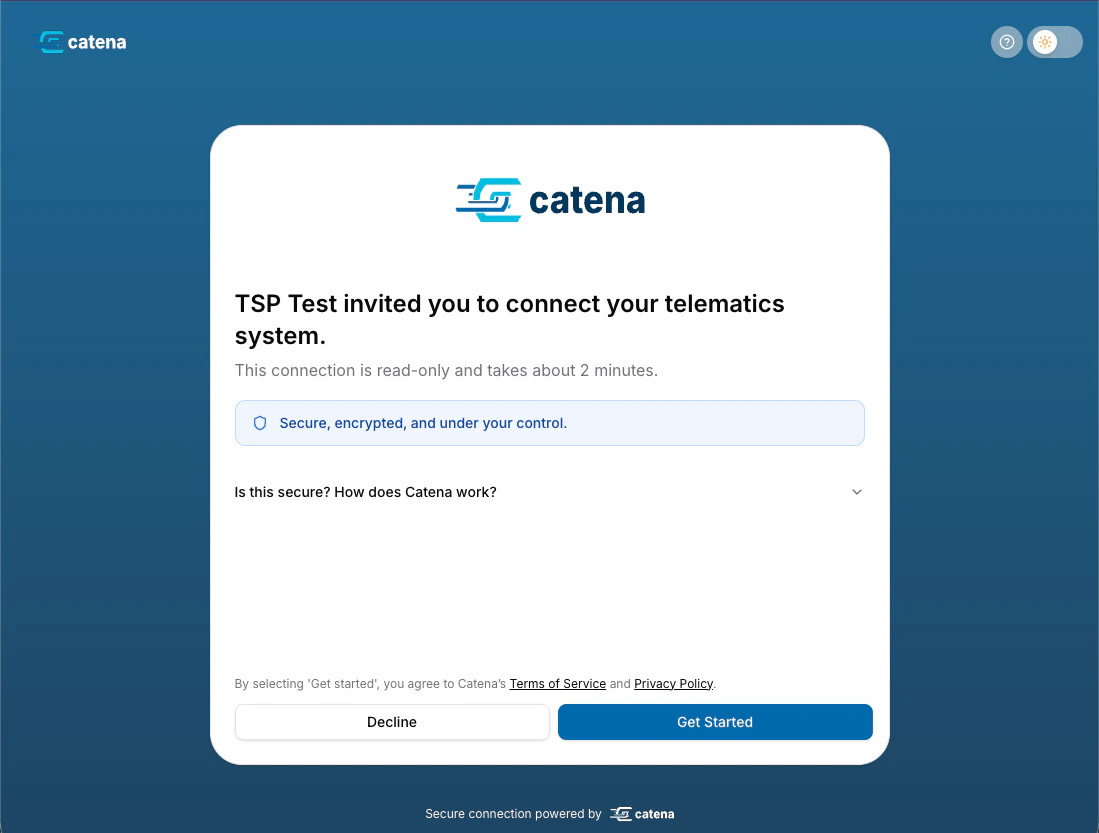 Fleet chooses their telematics service provider from the supported list.
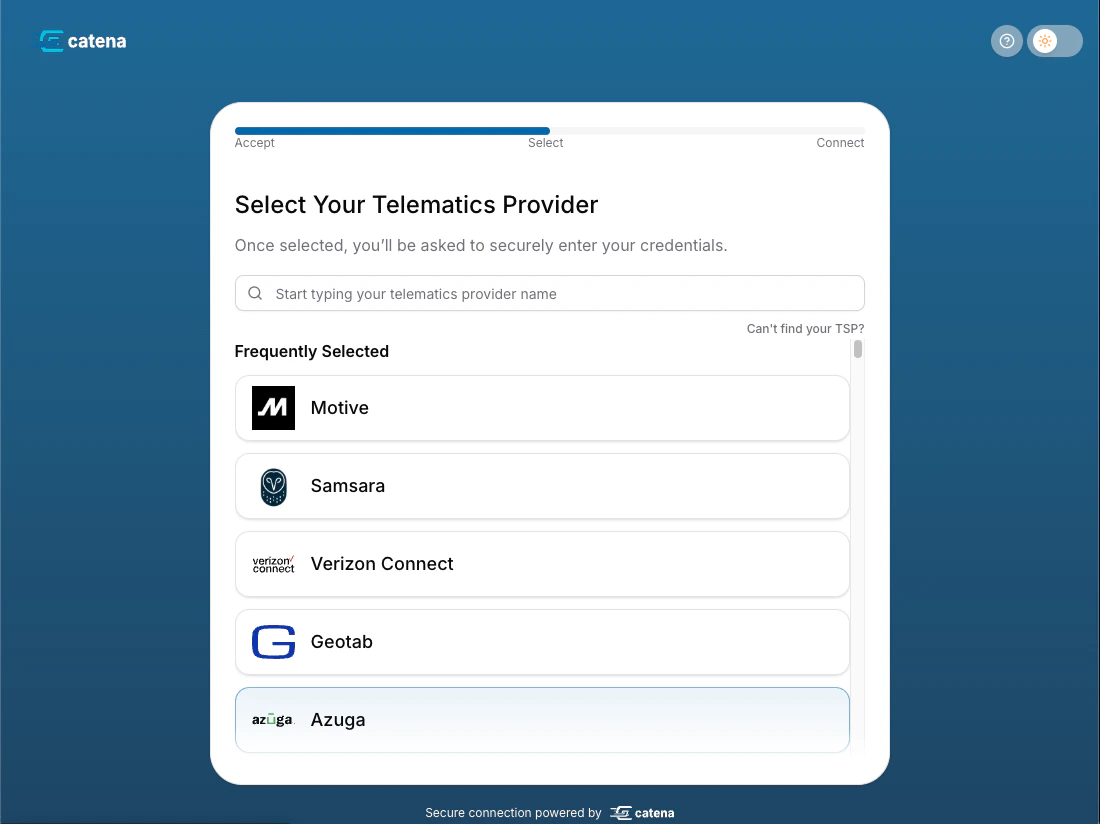 Fleet enters their TSP credentials (API keys, OAuth tokens, or login credentials depending on the provider).
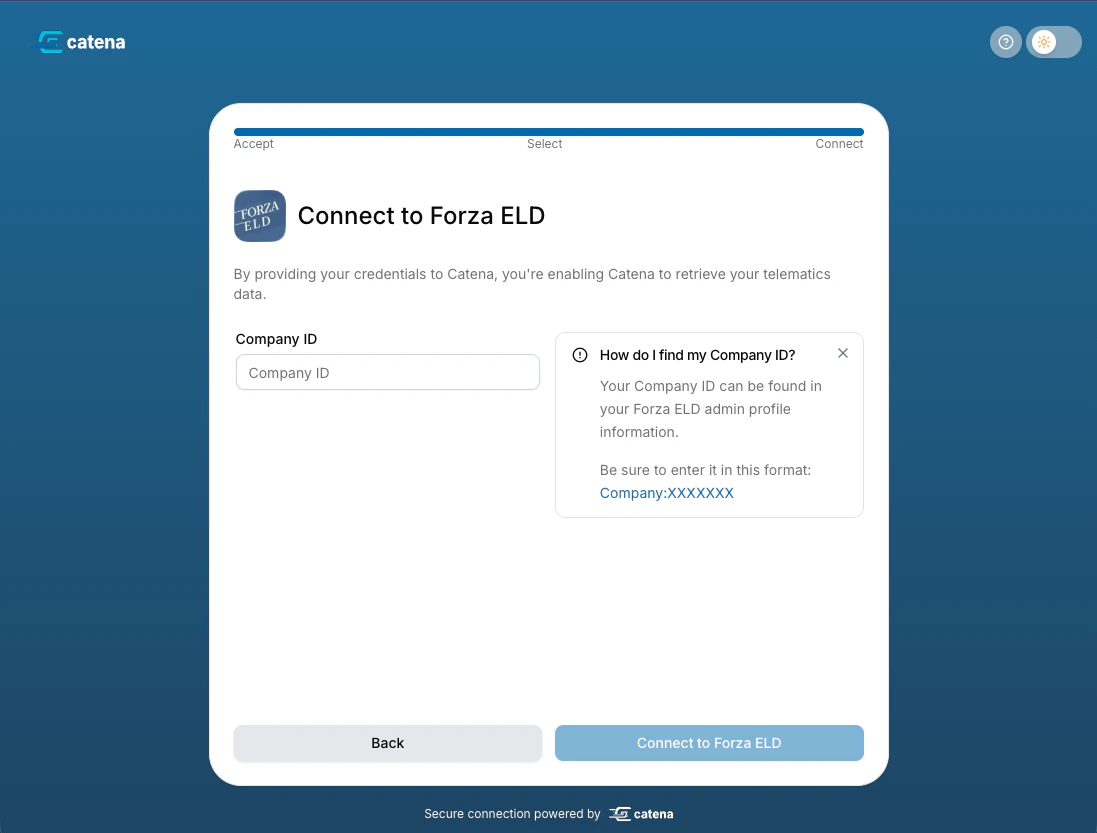 Catena validates credentials with the TSP, creates the connection, and establishes the share agreement.
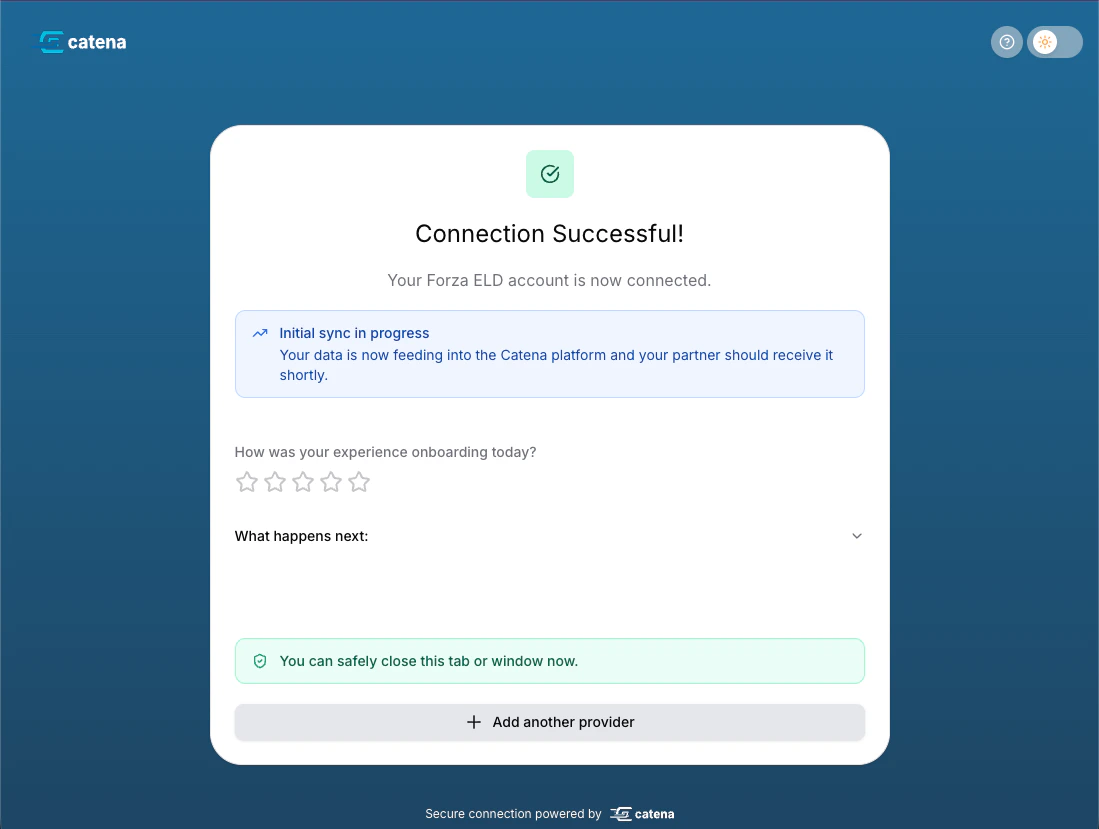 Fleet can choose to connect additional telematics providers (if they use multiple TSPs) or complete the onboarding process.
Once complete, the fleet is automatically redirected back to your application using the `success_redirect_url` you configured in the invitation.
**Real-Time Notifications:** Subscribe to webhooks to receive instant notifications when invitations are accepted, share agreements are created, and connections are established. This allows you to track fleet onboarding status in real-time and trigger workflows in your application. [Learn more about webhooks](/api-reference/webhooks/overview).
***
## Customization Options
Catena Connect can be tailored to match your brand and integration requirements:
Customize Catena Connect with your brand colors, logo, and domain to create a seamless experience that feels native to your platform.
Contact your Catena account manager to configure white labeling for your organization.
Configure where fleets are sent after completing or abandoning the onboarding flow:
* `success_redirect_url` - Where fleets go after successful connection
* `failure_redirect_url` - Where fleets go if they cancel or encounter errors
Include query parameters to pass context back to your application.
Restrict which telematics providers are shown to fleets during onboarding. Useful for:
* Piloting with specific TSPs
* Industry-specific provider limitations
* Custom TSP partnership agreements
Configure via the `limit_tsps` parameter when creating invitations.
Pass metadata through the invitation to pre-populate fleet information:
* `fleet_ref` - Your internal fleet identifier
* `partner_provided_fleet_name` - Fleet company name
This data flows through to share agreements and webhook events for easy tracking.
***
## Security & Compliance
Catena Connect is designed with security as a top priority:
* All TSP credentials are encrypted at rest using AES-256
* Credentials are transmitted only over HTTPS
* Credentials are never logged or exposed in API responses
* Connections can be paused or revoked at any time by the fleet
* Magic links are single-use and time-limited (24 hours by default)
* Each invitation generates a cryptographically secure pre-registration token for authentication
* Links expire automatically after acceptance or expiration
* Fleets do not need to sign up (create a username/password) to use Catena Connect
* Fleets explicitly consent to data sharing during onboarding
* Share agreements clearly define what data will be accessed
* Fleets can revoke access at any time through Catena Connect
* All data access is logged for audit purposes
* GDPR and CCPA compliant data handling
***
## Monitoring Fleet Onboarding
Track the status of your fleet invitations and connections:
### Via API
Query invitation status to see if fleets have completed onboarding:
```bash theme={null}
curl -X GET \
'https://api.catenatelematics.com/v2/orgs/invitations/{invitation_id}' \
-H 'Authorization: Bearer '
```
### Via Webhooks
Subscribe to invitation and connection events for real-time updates:
Add the callback URL when creating invitations to receive webhook notifications:
```bash highlight={9} theme={null}
curl -X POST \
--url https://api.catenatelematics.com/v2/orgs/invitations \
-H 'Authorization: Bearer ' \
-H 'accept: application/json' \
-H 'Content-Type: application/json' \
-d '{
"fleet_ref": "",
"success_redirect_url": "https://yourdomain.com/onboarding/success",
"callback_url": "https://yourdomain.com/webhooks/invitations"
}'
```
Learn how to set up, monitor and manage your webhooks.
***
## Best Practices
* **Embed in your product flow**: Display the magic link as a button or redirect in your application for the smoothest experience
* **Email with context**: If sending via email, explain what the link does and why you're requesting access
* **Track expiration**: Monitor invitation status and resend if needed—invitations expire after 24 hours by default
* **Personalize the message**: Include the fleet's name to increase acceptance rates
* **Success URL**: Redirect to a confirmation page that explains what happens next (data sync timing, how to view data, etc.)
* **Failure URL**: Provide troubleshooting guidance or customer support contact information
* **Include state parameters**: Pass `fleet_ref` or other identifiers as query parameters to track which fleet completed onboarding
* **Test both paths**: Ensure both success and failure redirects work correctly in your application
* **Monitor declined invitations**: Track which fleets decline and follow up to understand concerns
* **Handle expired invitations**: Automatically resend or prompt users to create new invitations
* **TSP credential failures**: We provide clear instructions for fleets to obtain the correct credentials from their TSP in our help sidebar
***
Have questions or need assistance? Our team is here to help you succeed.
Fleet can choose to connect additional telematics providers (if they use multiple TSPs) or complete the onboarding process.
Once complete, the fleet is automatically redirected back to your application using the `success_redirect_url` you configured in the invitation.
**Real-Time Notifications:** Subscribe to webhooks to receive instant notifications when invitations are accepted, share agreements are created, and connections are established. This allows you to track fleet onboarding status in real-time and trigger workflows in your application. [Learn more about webhooks](/api-reference/webhooks/overview).
***
## Customization Options
Catena Connect can be tailored to match your brand and integration requirements:
Customize Catena Connect with your brand colors, logo, and domain to create a seamless experience that feels native to your platform.
Contact your Catena account manager to configure white labeling for your organization.
Configure where fleets are sent after completing or abandoning the onboarding flow:
* `success_redirect_url` - Where fleets go after successful connection
* `failure_redirect_url` - Where fleets go if they cancel or encounter errors
Include query parameters to pass context back to your application.
Restrict which telematics providers are shown to fleets during onboarding. Useful for:
* Piloting with specific TSPs
* Industry-specific provider limitations
* Custom TSP partnership agreements
Configure via the `limit_tsps` parameter when creating invitations.
Pass metadata through the invitation to pre-populate fleet information:
* `fleet_ref` - Your internal fleet identifier
* `partner_provided_fleet_name` - Fleet company name
This data flows through to share agreements and webhook events for easy tracking.
***
## Security & Compliance
Catena Connect is designed with security as a top priority:
* All TSP credentials are encrypted at rest using AES-256
* Credentials are transmitted only over HTTPS
* Credentials are never logged or exposed in API responses
* Connections can be paused or revoked at any time by the fleet
* Magic links are single-use and time-limited (24 hours by default)
* Each invitation generates a cryptographically secure pre-registration token for authentication
* Links expire automatically after acceptance or expiration
* Fleets do not need to sign up (create a username/password) to use Catena Connect
* Fleets explicitly consent to data sharing during onboarding
* Share agreements clearly define what data will be accessed
* Fleets can revoke access at any time through Catena Connect
* All data access is logged for audit purposes
* GDPR and CCPA compliant data handling
***
## Monitoring Fleet Onboarding
Track the status of your fleet invitations and connections:
### Via API
Query invitation status to see if fleets have completed onboarding:
```bash theme={null}
curl -X GET \
'https://api.catenatelematics.com/v2/orgs/invitations/{invitation_id}' \
-H 'Authorization: Bearer '
```
### Via Webhooks
Subscribe to invitation and connection events for real-time updates:
Add the callback URL when creating invitations to receive webhook notifications:
```bash highlight={9} theme={null}
curl -X POST \
--url https://api.catenatelematics.com/v2/orgs/invitations \
-H 'Authorization: Bearer ' \
-H 'accept: application/json' \
-H 'Content-Type: application/json' \
-d '{
"fleet_ref": "",
"success_redirect_url": "https://yourdomain.com/onboarding/success",
"callback_url": "https://yourdomain.com/webhooks/invitations"
}'
```
Learn how to set up, monitor and manage your webhooks.
***
## Best Practices
* **Embed in your product flow**: Display the magic link as a button or redirect in your application for the smoothest experience
* **Email with context**: If sending via email, explain what the link does and why you're requesting access
* **Track expiration**: Monitor invitation status and resend if needed—invitations expire after 24 hours by default
* **Personalize the message**: Include the fleet's name to increase acceptance rates
* **Success URL**: Redirect to a confirmation page that explains what happens next (data sync timing, how to view data, etc.)
* **Failure URL**: Provide troubleshooting guidance or customer support contact information
* **Include state parameters**: Pass `fleet_ref` or other identifiers as query parameters to track which fleet completed onboarding
* **Test both paths**: Ensure both success and failure redirects work correctly in your application
* **Monitor declined invitations**: Track which fleets decline and follow up to understand concerns
* **Handle expired invitations**: Automatically resend or prompt users to create new invitations
* **TSP credential failures**: We provide clear instructions for fleets to obtain the correct credentials from their TSP in our help sidebar
***
Have questions or need assistance? Our team is here to help you succeed.