> ## Documentation Index
> Fetch the complete documentation index at: https://docs.catenatelematics.com/llms.txt
> Use this file to discover all available pages before exploring further.
# Get Fleet Data in 10 Minutes
> Connect to telematics providers and start retrieving fleet data with just a few API calls
export const ProviderCountSnippet = () =>
Catena currently supports 216 ELD providers. See the list.
;
This guide walks you through the complete integration flow—from authenticating with the API to inviting fleets and retrieving their telematics data. By the end, you'll have successfully connected a fleet and made your first data request.
**What You'll Build:** A working integration that authenticates, invites a fleet, and retrieves live vehicle location data—all in under 10 minutes.
## Integration Steps
Exchange your Client ID and Secret for an access token to authorize your API requests.
Generate a secure invitation link to connect a fleet's telematics provider to your organization.
Make API calls to access real-time vehicle locations and other telematics data from your connected fleet.
**Prerequisites:** You'll need your Client ID and Client Secret from the Catena team. Don't have credentials yet? [Get access in minutes](/get-started/getting-access).
***
## Step 1: Authenticate with the API
Before making any API requests, you need to obtain an access token using your Client ID and Secret. This token authorizes all subsequent requests to the Catena API.
### Request an Access Token
Replace `` with your actual Client ID and Client Secret:
```bash Request highlight={4-5} theme={null}
curl -X POST \
--url https://auth.catenatelematics.com/realms/catena/protocol/openid-connect/token \
--data grant_type=client_credentials \
--data 'client_id=' \
--data 'client_secret='
```
### Authentication Response
The response includes your `access_token`, which you'll use in the Authorization header for all API requests:
```json Response highlight={2,3} theme={null}
{
"access_token": "eyJhbGciOiJIUzUxMiIsInR5cCIgOiAiS...",
"expires_in": 123,
"refresh_expires_in": 123,
"token_type": "Bearer",
"session_state": "123e4567-e89b-12d3-a456-426614174000",
"not-before-policy": 0,
"scope": "fleet:read share-agreement:read telematics:read"
}
```
**Store your token securely:** The `access_token` expires after the time specified in `expires_in` (in seconds).
View complete authentication documentation including token refresh and scope management.
***
## Step 2: Create a Fleet Invitation
Fleet invitations are the gateway for fleets to connect their telematics providers to your organization. Each invitation generates a unique, secure link that you can share with the fleet.
### Send an Invitation Request
Include a `fleet_ref` to track this fleet using your internal identifier:
```bash Request highlight={3,7-8} theme={null}
curl -X POST \
--url https://api.catenatelematics.com/v2/orgs/invitations \
-H 'Authorization: Bearer ' \
-H 'accept: application/json' \
-H 'Content-Type: application/json' \
-d '{
"fleet_ref": "",
"success_redirect_url": "https://yourdomain.com/onboarding/success"
}'
```
### Invitation Response
The response includes the `magic_link` that you'll share with the fleet:
```json Response highlight={4,6,7,12,16,20} theme={null}
{
"id": "3fa85f64-5717-4562-b3fc-2c963f66afa6",
"created_at": "2025-11-28T13:14:05.223Z",
"magic_link": "https://connect.catenatelematics.com/?invite=3fa85f64-5717-4562-b3fc-2c963f66afa6",
"expires_at": "2025-11-29T13:14:05.223Z",
"expires_in_hours": 24,
"status": "active",
"partner_provided_fleet_name": null,
"accepted_at": null,
"pre_registration_access_token": null,
"pre_registration_refresh_token": null,
"success_redirect_url": "https://yourdomain.com/onboarding/success",
"failure_redirect_url": null,
"limit_tsps": [],
"fleet_id": null,
"partner_slug": "",
"partner_id": "123e4567-e89b-12d3-a456-426614174000",
"decline_reason": null,
"declined_at": null,
"fleet_ref": ""
}
```
**Key Response Fields:**
* **`magic_link`**: The unique URL to send to the fleet for connecting their telematics provider
* **`expires_in_hours`**: Invitations are valid for 24 hours by default
* **`fleet_ref`**: Your internal identifier for tracking this fleet in your system
* **`status`**: Track invitation state (`active`, `accepted`, `expired`, or `declined`)
* **`success_redirect_url`**: The URL where fleets will be redirected after successfully completing the onboarding process
**Delivering the Invitation:** You can embed the `magic_link` in your product flow, send it via email, or share it through any communication channel. Configure `success_redirect_url` to return fleets to your application after they complete the connection process.
Explore advanced invitation options including TSP filtering, custom redirect URLs, and pre-registration tokens.
***
## Step 3: Fleet Onboarding Experience
When a fleet clicks the invitation link, they enter the **Catena Connect** onboarding flow. This white-labeled experience can be customized to match your brand.
### The Connection Process
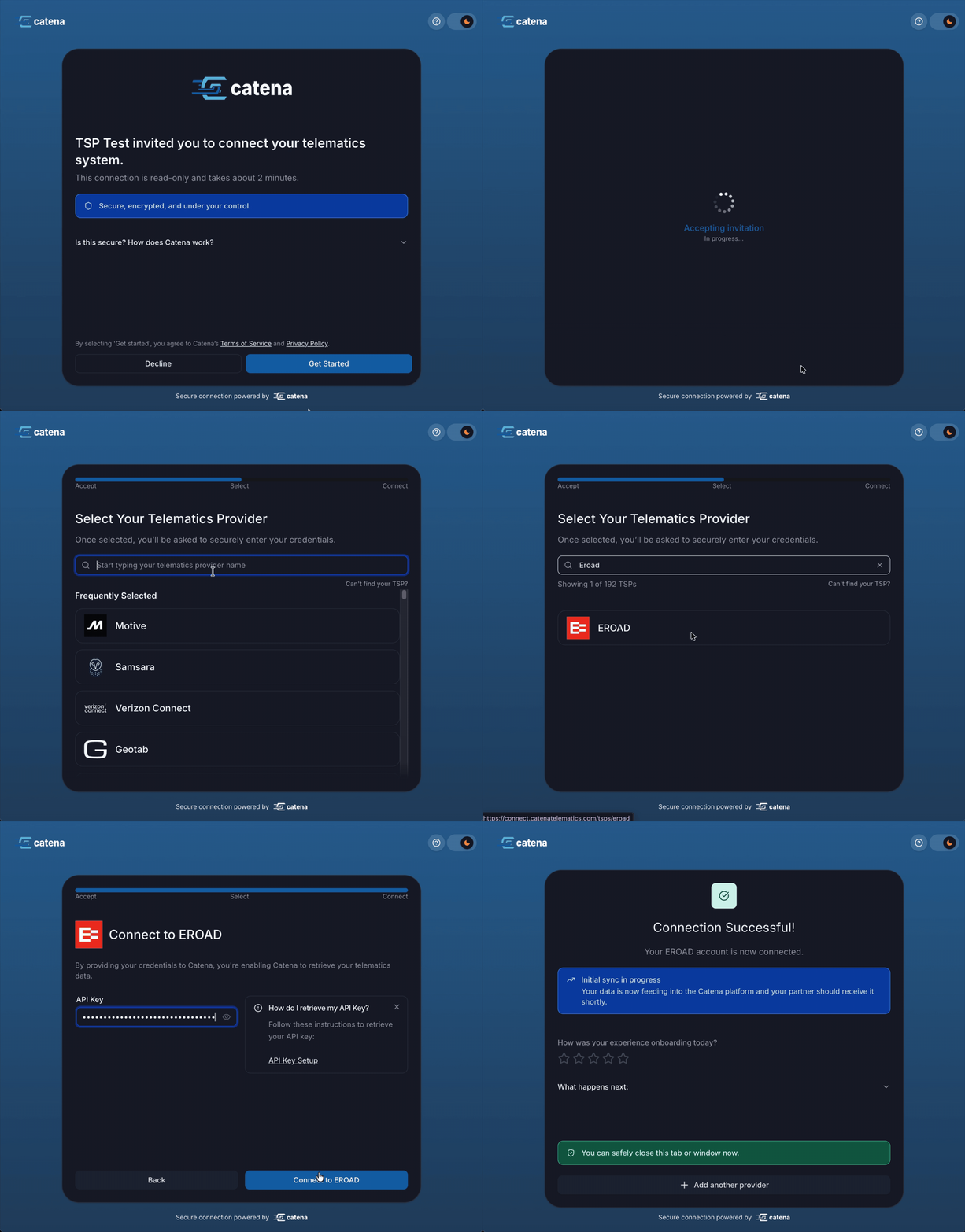 The fleet completes these steps in the **Catena Connect** interface:
1. **Review and Accept** - The fleet reviews the data sharing agreement and accepts the invitation
2. **Select Provider** - Choose their telematics service provider from our supported options
3. **Authenticate** - Securely input their TSP credentials or API key
4. **Connection Active** - Catena begins ingesting their telematics data in real-time
5. **Optional** - Connect additional TSPs or return to your application via `success_redirect_url`
**Data Available Immediately:** Once the connection is active, telematics data begins flowing through the Catena API within minutes. You can start retrieving vehicle locations, driver information, and other data right away.
***
## Step 4: Retrieve Fleet Data
Now that a fleet is connected, you can access their telematics data through the Catena API. Let's start by retrieving real-time vehicle locations.
### Request Vehicle Locations
Use your access token to retrieve vehicle location data from all connected fleets:
```bash Request theme={null}
curl --request GET \
--url https://api.catenatelematics.com/v2/telematics/vehicle-locations \
--header 'Authorization: Bearer '
```
### Vehicle Locations Response
The response returns an array of vehicle location records with comprehensive telemetry data:
```json Response theme={null}
{
"items": [
{
"id": "3c90c3cc-0d44-4b50-8888-8dd25736052a",
"fleet_id": "3c90c3cc-0d44-4b50-8888-8dd25736052a",
"source_name": "eroad",
"source_id": "",
"occurred_at": "2023-11-07T05:31:56Z",
"vehicle_id": "3c90c3cc-0d44-4b50-8888-8dd25736052a",
"driver_id": "3c90c3cc-0d44-4b50-8888-8dd25736052a",
"co_driver_id": "3c90c3cc-0d44-4b50-8888-8dd25736052a",
"location": {
"type": "",
"coordinates": [
"123.45",
"67.89"
]
},
"h3_index_11": 123,
"speed": 123,
"odometer": 123,
"fuel_level": 123,
"engine_hours": 123,
"oil_pressure": 123,
"coolant_temperature": 123
}
],
"current_page": "",
"current_page_backwards": "",
"previous_page": "",
"next_page": ""
}
```
**Understanding the Response:**
* **`fleet_id`**: Catena's unique identifier for the fleet
* **`source_name`**: The telematics provider (e.g., Samsara, Geotab, Motive)
* **`location.coordinates`**: GeoJSON format `[longitude, latitude]`
* **`occurred_at`**: ISO 8601 timestamp when the location was recorded
* **Pagination**: Use `next_page` and `previous_page` tokens to navigate through results
Congratulations! You've successfully integrated with the Catena Telematics API.
***
Have questions or need assistance? Our team is here to help you succeed.
The fleet completes these steps in the **Catena Connect** interface:
1. **Review and Accept** - The fleet reviews the data sharing agreement and accepts the invitation
2. **Select Provider** - Choose their telematics service provider from our supported options
3. **Authenticate** - Securely input their TSP credentials or API key
4. **Connection Active** - Catena begins ingesting their telematics data in real-time
5. **Optional** - Connect additional TSPs or return to your application via `success_redirect_url`
**Data Available Immediately:** Once the connection is active, telematics data begins flowing through the Catena API within minutes. You can start retrieving vehicle locations, driver information, and other data right away.
***
## Step 4: Retrieve Fleet Data
Now that a fleet is connected, you can access their telematics data through the Catena API. Let's start by retrieving real-time vehicle locations.
### Request Vehicle Locations
Use your access token to retrieve vehicle location data from all connected fleets:
```bash Request theme={null}
curl --request GET \
--url https://api.catenatelematics.com/v2/telematics/vehicle-locations \
--header 'Authorization: Bearer '
```
### Vehicle Locations Response
The response returns an array of vehicle location records with comprehensive telemetry data:
```json Response theme={null}
{
"items": [
{
"id": "3c90c3cc-0d44-4b50-8888-8dd25736052a",
"fleet_id": "3c90c3cc-0d44-4b50-8888-8dd25736052a",
"source_name": "eroad",
"source_id": "",
"occurred_at": "2023-11-07T05:31:56Z",
"vehicle_id": "3c90c3cc-0d44-4b50-8888-8dd25736052a",
"driver_id": "3c90c3cc-0d44-4b50-8888-8dd25736052a",
"co_driver_id": "3c90c3cc-0d44-4b50-8888-8dd25736052a",
"location": {
"type": "",
"coordinates": [
"123.45",
"67.89"
]
},
"h3_index_11": 123,
"speed": 123,
"odometer": 123,
"fuel_level": 123,
"engine_hours": 123,
"oil_pressure": 123,
"coolant_temperature": 123
}
],
"current_page": "",
"current_page_backwards": "",
"previous_page": "",
"next_page": ""
}
```
**Understanding the Response:**
* **`fleet_id`**: Catena's unique identifier for the fleet
* **`source_name`**: The telematics provider (e.g., Samsara, Geotab, Motive)
* **`location.coordinates`**: GeoJSON format `[longitude, latitude]`
* **`occurred_at`**: ISO 8601 timestamp when the location was recorded
* **Pagination**: Use `next_page` and `previous_page` tokens to navigate through results
Congratulations! You've successfully integrated with the Catena Telematics API.
***
Have questions or need assistance? Our team is here to help you succeed.